Publisher: 汇科天下 (hktx.cn). Marketplace partner app for Confluence Cloud and Jira Cloud. Support: [email protected].
MeetingAction extracts action items and decisions from a Confluence meeting page and creates Jira work items, with assignee and due-date suggestions and a meeting-source panel on the issue. You review the extracted items, choose a Jira project and issue type, and confirm before anything is created. The app runs on Atlassian Forge with no remote backend and no external analytics.
Quick start
Install MeetingAction from the Atlassian Marketplace on both your Confluence Cloud site and your Jira Cloud site, and accept the permission prompts.
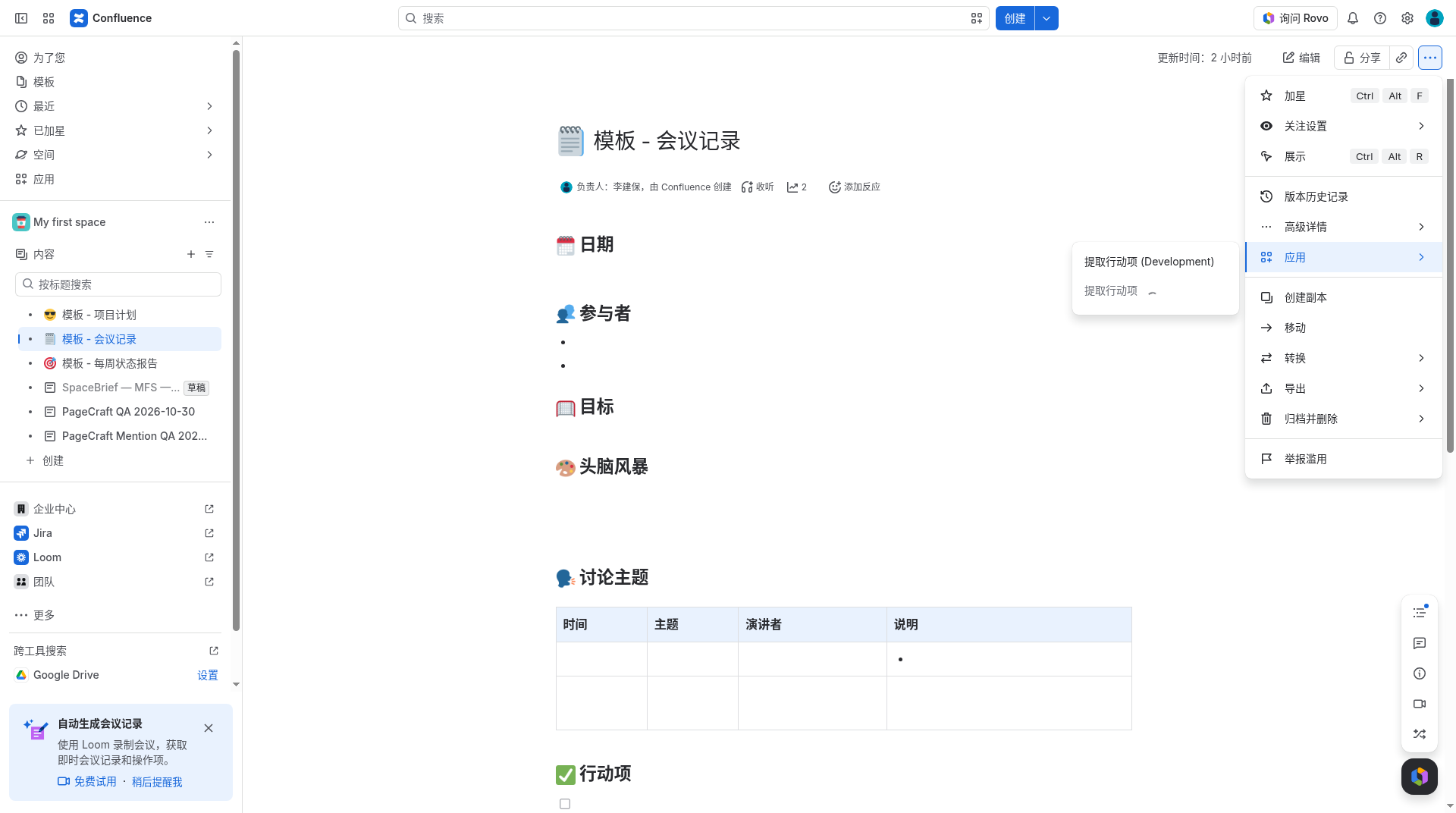
Open a Confluence meeting page. From the page menu (•••), choose Apps, then the MeetingAction action. In the Chinese Confluence UI this is labeled 提取行动项 (Extract action items). If a development install is also present, you may see a second item labeled 提取行动项 (Development) — use the item without that suffix.
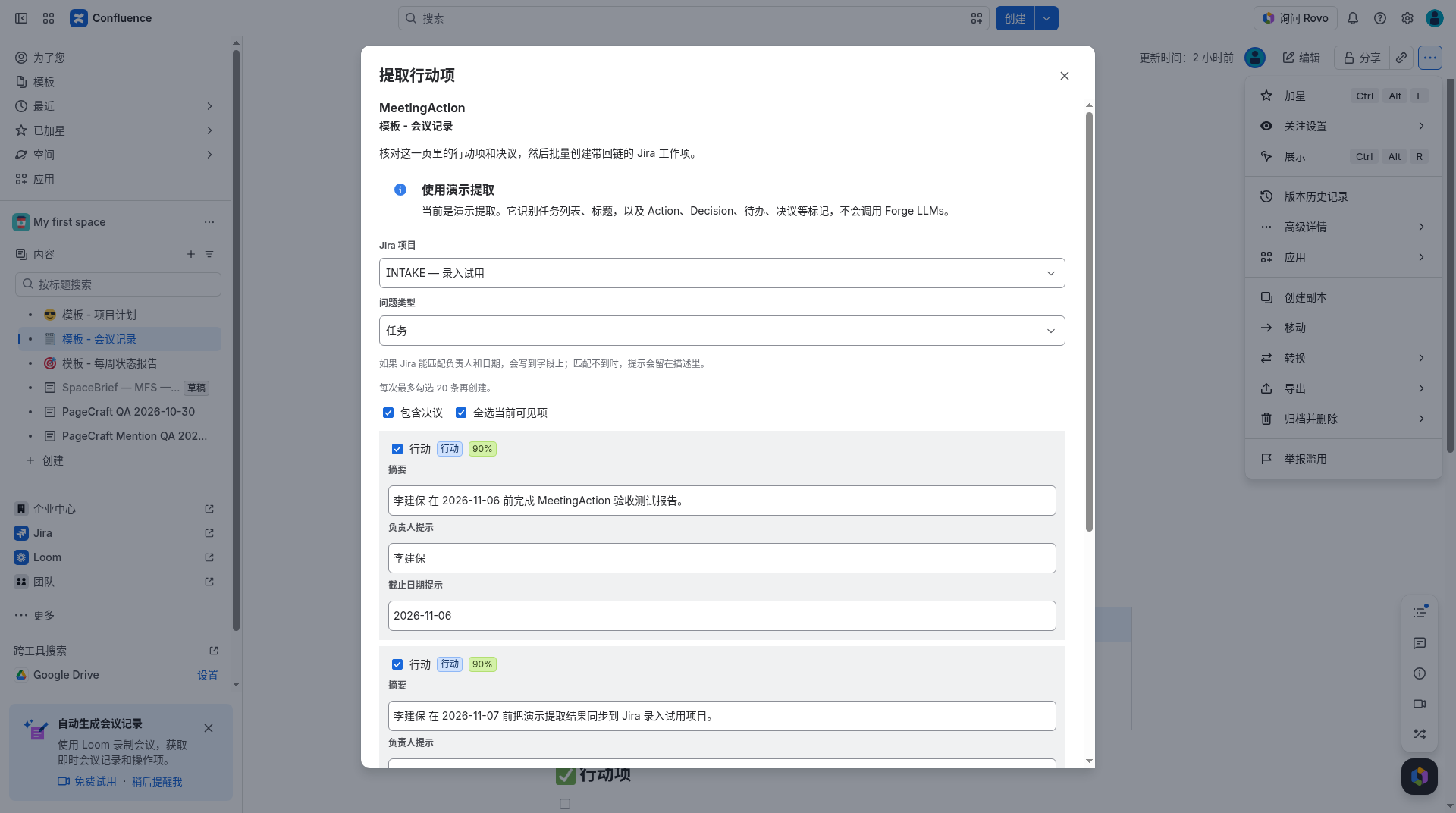
If the page has no recognized actions or decisions yet, the dialog offers 使用演示提取 (Use demo extract) and 用 AI 提取 (AI extract). Demo extract recognizes task lists, headings, and markers such as Action, Decision, 待办, and 决议, and does not call Forge LLMs. AI extract uses Forge LLMs hosted by Atlassian; the page body is not sent to an external model.
Choose a Jira project and issue type. Review each item’s summary, assignee hint, and due-date hint. You can include or exclude decisions, and you can edit the fields before create. At most 20 selected items are created in one run.
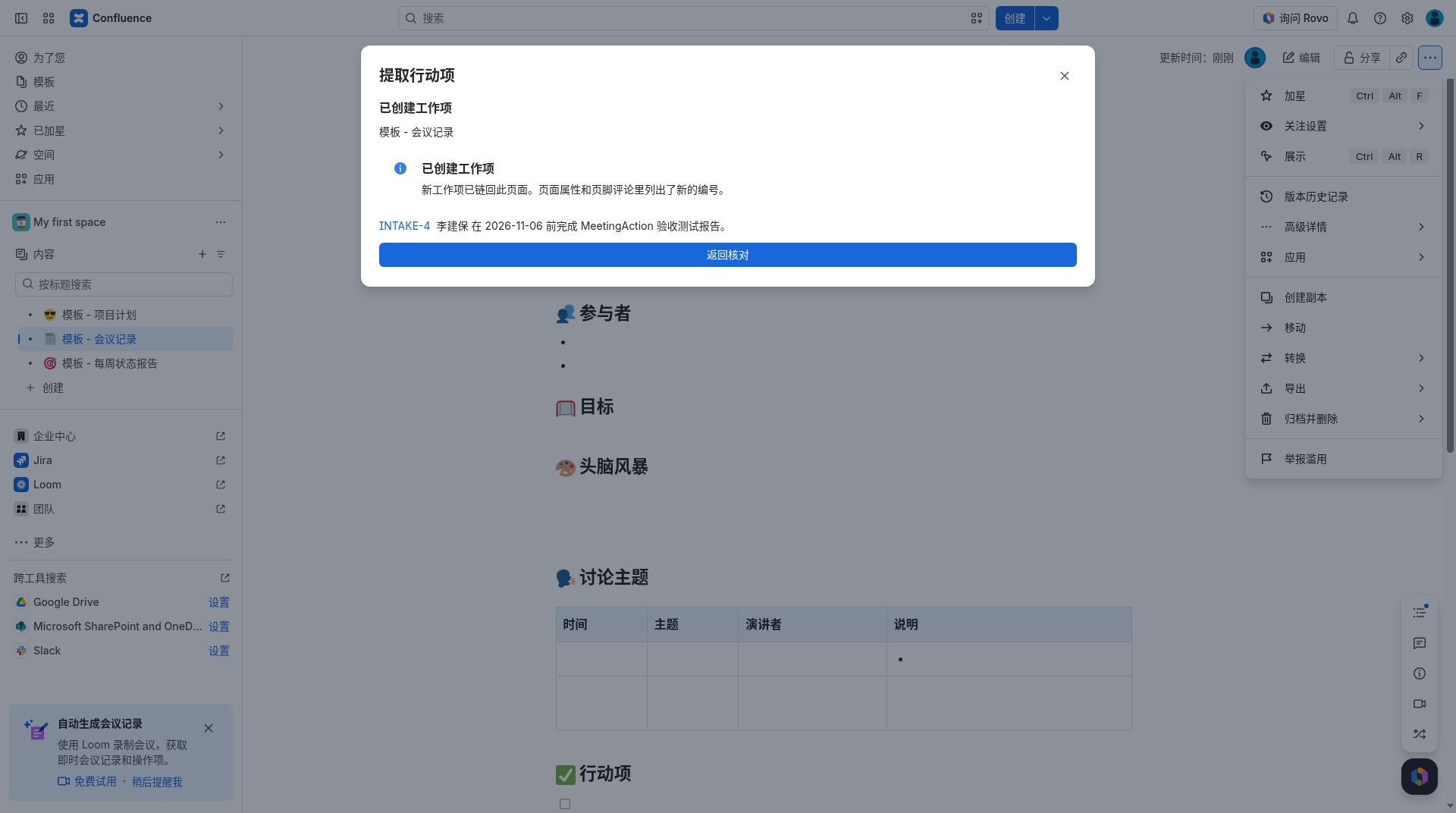
Choose 创建 Jira 工作项 (Create Jira work items). MeetingAction does not create issues until you confirm. After create, the dialog lists the new issue keys; the meeting page gets a back-link in page properties and a footer comment, and each new issue shows a meeting-source panel that links back to the page.
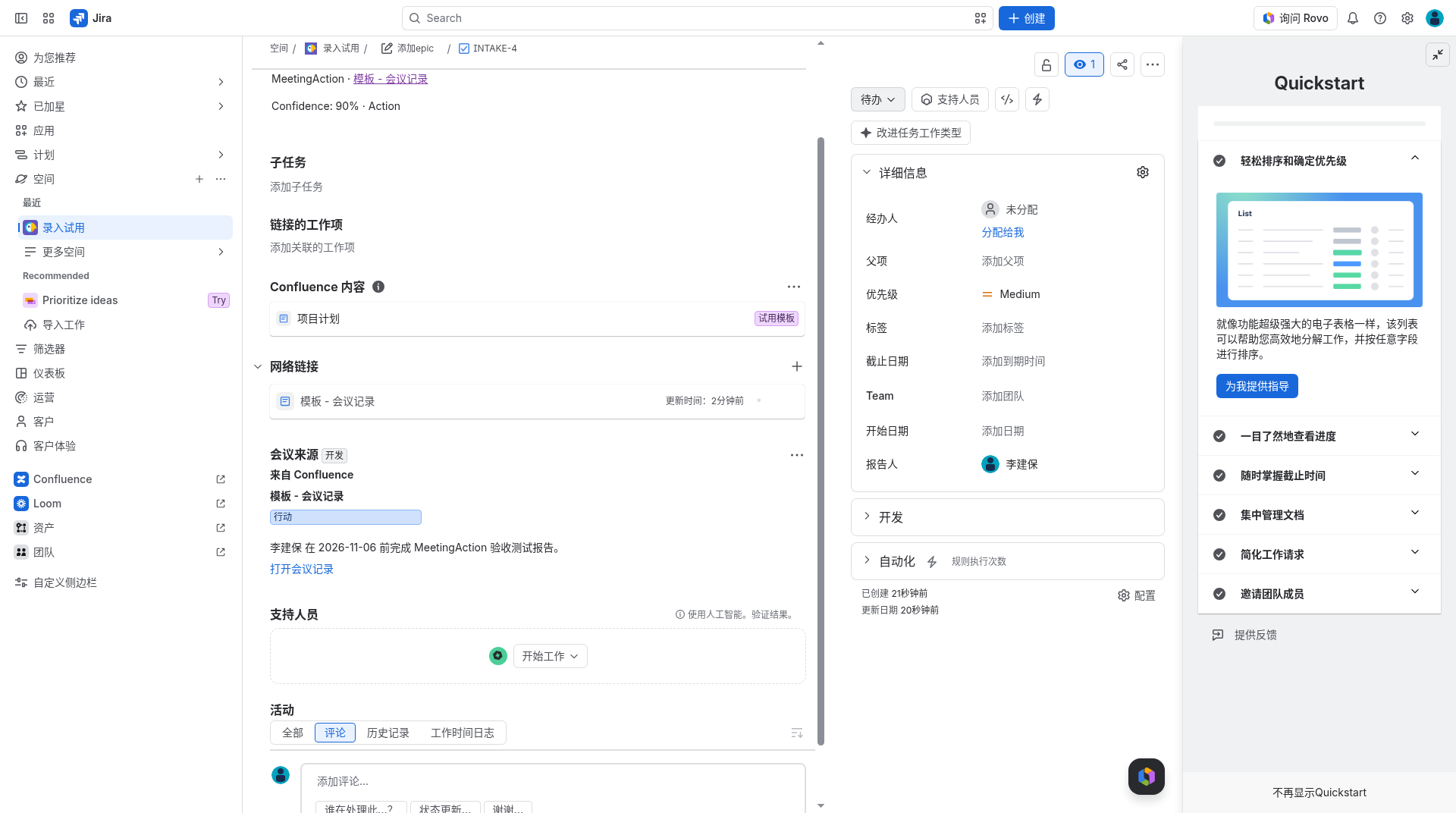
Figure 1. On a Confluence meeting page, open the page menu (•••) → Apps and choose 提取行动项. This screenshot also shows a development install; on a production-only site you will see a single item without the Development suffix.Figure 2. After demo extract, review the list: pick the Jira project and issue type, edit summaries or hints, then create. If Jira can match an assignee and a due date, those values are written to the issue fields; otherwise the hints stay in the description. The create button at the bottom of the dialog is labeled 创建 Jira 工作项, with the selected count.Figure 3. After confirm, the dialog lists the new issue keys and notes that the items are linked back to this page through page properties and a footer comment.Figure 4. The meeting-source panel (会议来源) on a Jira issue created by MeetingAction, with a link back to the Confluence meeting page. The 开发 badge on this panel comes from a development install; it is not a product feature. On a production-only site the badge does not appear.
Main features
Review before create — extracted actions and decisions are shown in a checklist. Nothing is created until you confirm.
Assignee and due suggestions — hints from the meeting text are offered on each item. When Jira can resolve a matching assignee or due date, the value is written to the corresponding field; otherwise the hint remains in the description.
Demo extract or AI extract — demo extract is deterministic and never calls a model. AI extract uses Atlassian Forge LLMs and does not send the page body to an external model. You can run either from the same dialog.
Meeting-source panel — issues created by MeetingAction show a panel that names the Confluence source page and links back to it. Issues that were not created by MeetingAction show an empty-state message in that panel.
Back-link on the meeting page — new issue keys are recorded in page properties and a footer comment.
Plans
Marketplace tier (listing intent)
Who
Price
Free
Sites with ≤10 users on the host product, as the Marketplace form allows
$0
Paid
Sites above that cap
10% of the host product (Confluence and Jira, as the Marketplace form allows)
This is the Marketplace listing price table. MeetingAction does not bill inside the extract dialog.
Limits
Install the app on both Confluence and Jira. The extract action lives on the Confluence page; the work items and meeting-source panel live in Jira.
At most 20 selected items can be created in one run.
The app does not create or update Jira issues until you confirm the selection.
Out of scope: changing Confluence restrictions, weekly space digests, and Rovo rich-page creation.
We are a third-party Marketplace partner (汇科天下 / hktx.cn), not Atlassian. App name MeetingAction does not start with an Atlassian product name and does not use Atlassian logos in the app icon.
Documentation for Marketplace App Review. Last updated 2026-11-13.